SOLA DMS Documentation
Complete guide to installing, configuring, and using SOLA Document Management System
Introduction
SOLA DMS is a powerful, AI-powered document management system designed for enterprise use. It provides comprehensive features for document storage, workflow automation, intelligent search, and team collaboration.
AI-Powered
Automatic document classification, OCR, and intelligent metadata extraction
Workflow Automation
Visual pipeline builder for document routing and approval workflows
Smart Search
Full-text and semantic search across all documents and metadata
Enterprise Security
Role-based access control, audit logs, and SSO integration
Installation
SOLA DMS can be deployed using Docker in minutes. Follow these steps to get started.
System Requirements
- Docker Engine 20.10+
- Docker Compose 2.0+
- 8GB RAM (16GB recommended)
- 20GB free disk space
Step-by-Step Installation
-
Download the Package
Download the SOLA DMS package from our website (approximately 1.3GB).
wget https://solaflow365.com/downloads/sola-dms-package.tar.gz -
Extract the Archive
Extract the downloaded package to your desired location.
tar -xzf sola-dms-package.tar.gz cd sola-dms-package -
Start the Services
Run the start script to initialize and launch all services.
# Linux/Mac chmod +x start.sh ./start.sh # Windows docker compose up -d -
Wait for Initialization
The first startup takes 2-5 minutes as Docker images are loaded and databases are initialized.
# Monitor startup progress docker compose logs -f # Check all services are healthy docker compose ps -
Run Post-Installation Setup
Important: Run these commands to complete the setup. This configures authentication and creates the demo user.
# 1. Configure Keycloak for Docker networking
docker exec sola-keycloak /opt/keycloak/bin/kcadm.sh config credentials \
  --server http://localhost:8080 --realm master --user admin --password YOUR_KEYCLOAK_ADMIN_PASSWORD

docker exec sola-keycloak /opt/keycloak/bin/kcadm.sh update realms/sola \
  -s 'attributes.frontendUrl=http://host.docker.internal:8080'

# 2. Add localhost to allowed redirect URIs
CLIENT_ID=$(docker exec sola-keycloak /opt/keycloak/bin/kcadm.sh get clients -r sola \
  -q clientId=sola-document-frontend --fields id --format csv --noquotes | tail -1)
docker exec sola-keycloak /opt/keycloak/bin/kcadm.sh update clients/$CLIENT_ID -r sola \
  -s 'redirectUris=["http://localhost:5047/*","http://localhost:3000/*"]' \
  -s 'webOrigins=["http://localhost:5047","http://localhost:3000","+"]'

# 3. Create demo user in Keycloak
docker exec sola-keycloak /opt/keycloak/bin/kcadm.sh create users -r sola \
  -s username=demo -s enabled=true -s email=demo@example.com \
  -s firstName=Demo -s lastName=User -s emailVerified=true
docker exec sola-keycloak /opt/keycloak/bin/kcadm.sh set-password -r sola \
  --username demo --new-password YOUR_SECURE_PASSWORD

# 4. Add demo user to DMS database with Admin role
docker exec sola-mssql /opt/mssql-tools18/bin/sqlcmd -S localhost -U sa \
  -P 'YourStrong@Passw0rd' -C -d DMS -Q "
INSERT INTO Users (Username, Email, FirstName, LastName, SystemRole, IsActive, CreatedDate)
VALUES ('demo', 'demo@example.com', 'Demo', 'User', 'Admin', 1, GETUTCDATE());"

# 5. Update API configuration for Docker networking
docker exec sola-api sh -c "sed -i 's|http://localhost:8080|http://host.docker.internal:8080|g' /app/appsettings.json"
docker restart sola-api
Why is this needed? Docker containers use internal networking. These commands configure Keycloak and the API to work correctly with Docker's networking model. -
Load Demo Data (Optional)
Optionally load sample documents, folders, and content types for testing.
./load-demo-data.sh
Login: Use the credentials you configured during setup. Request demo access for cloud-hosted trial.
Post-Installation Troubleshooting
Common issues encountered during Docker installation and their solutions.
Issue: "Invalid redirect_uri" Error
Solution: The Keycloak client needs the correct redirect URI. Run:
docker exec sola-keycloak /opt/keycloak/bin/kcadm.sh config credentials \
  --server http://localhost:8080 --realm master --user admin --password YOUR_KEYCLOAK_ADMIN_PASSWORD

CLIENT_ID=$(docker exec sola-keycloak /opt/keycloak/bin/kcadm.sh get clients -r sola \
  -q clientId=sola-document-frontend --fields id --format csv --noquotes | tail -1)

docker exec sola-keycloak /opt/keycloak/bin/kcadm.sh update clients/$CLIENT_ID -r sola \
  -s 'redirectUris=["http://localhost:5047/*"]'
Issue: 401 Unauthorized After Login
Cause: The API cannot reach Keycloak to validate JWT tokens due to Docker networking.
Solution: Configure Keycloak frontend URL and update API settings:
# Set Keycloak frontend URL
docker exec sola-keycloak /opt/keycloak/bin/kcadm.sh update realms/sola \
  -s 'attributes.frontendUrl=http://host.docker.internal:8080'

# Update API configuration
docker exec sola-api sh -c \
  "sed -i 's|http://localhost:8080|http://host.docker.internal:8080|g' /app/appsettings.json"
docker restart sola-api
Issue: 403 Forbidden - Account Not Set Up
Cause: The user exists in Keycloak but not in the DMS database.
Solution: Add the user to the DMS database:
docker exec sola-mssql /opt/mssql-tools18/bin/sqlcmd -S localhost -U sa \
  -P 'YourStrong@Passw0rd' -C -d DMS -Q "
INSERT INTO Users (Username, Email, FirstName, LastName, SystemRole, IsActive, CreatedDate)
VALUES ('your_username', 'your_email@example.com', 'First', 'Last', 'Admin', 1, GETUTCDATE());"
Issue: Database Tables Don't Exist
Cause: The database schema was not initialized properly.
Solution: Run the schema initialization script:
# Copy and run the schema script
docker cp ./init/schema.sql sola-mssql:/tmp/schema.sql
docker exec sola-mssql /opt/mssql-tools18/bin/sqlcmd -S localhost -U sa \
  -P 'YourStrong@Passw0rd' -C -i /tmp/schema.sql
Issue: Port Conflicts
Solution: Create a
.env file with alternative ports:
# Create .env file in the sola-dms-package directory
cat > .env << EOF
API_PORT=5147
KEYCLOAK_PORT=8280
MSSQL_PORT=1434
REDIS_PORT=6380
MEILISEARCH_PORT=7701
QDRANT_PORT=6433
DB_PASSWORD=YourStrong@Passw0rd
EOF

# Restart with new ports
docker compose down
docker compose up -d
Then access the application at http://localhost:5147 (or your configured API_PORT).
Configuration
Customize SOLA DMS by editing the .env file in the installation directory.
Environment Variables
# Database Configuration
DB_PASSWORD=YourStrong@Passw0rd

# Keycloak (Authentication)
KEYCLOAK_ADMIN=admin
KEYCLOAK_ADMIN_PASSWORD=YOUR_SECURE_PASSWORD

# Service Ports (change if needed)
API_PORT=5047
KEYCLOAK_PORT=8080
MEILISEARCH_PORT=7700
Service URLs
| Service | Default URL | Description |
|---|---|---|
| DMS Application | http://localhost:5047 | Main application interface |
| Keycloak Admin | http://localhost:8080 | Identity management console |
| Meilisearch | http://localhost:7700 | Search engine dashboard |
| SQL Server | localhost:1433 | Database server |
First Login
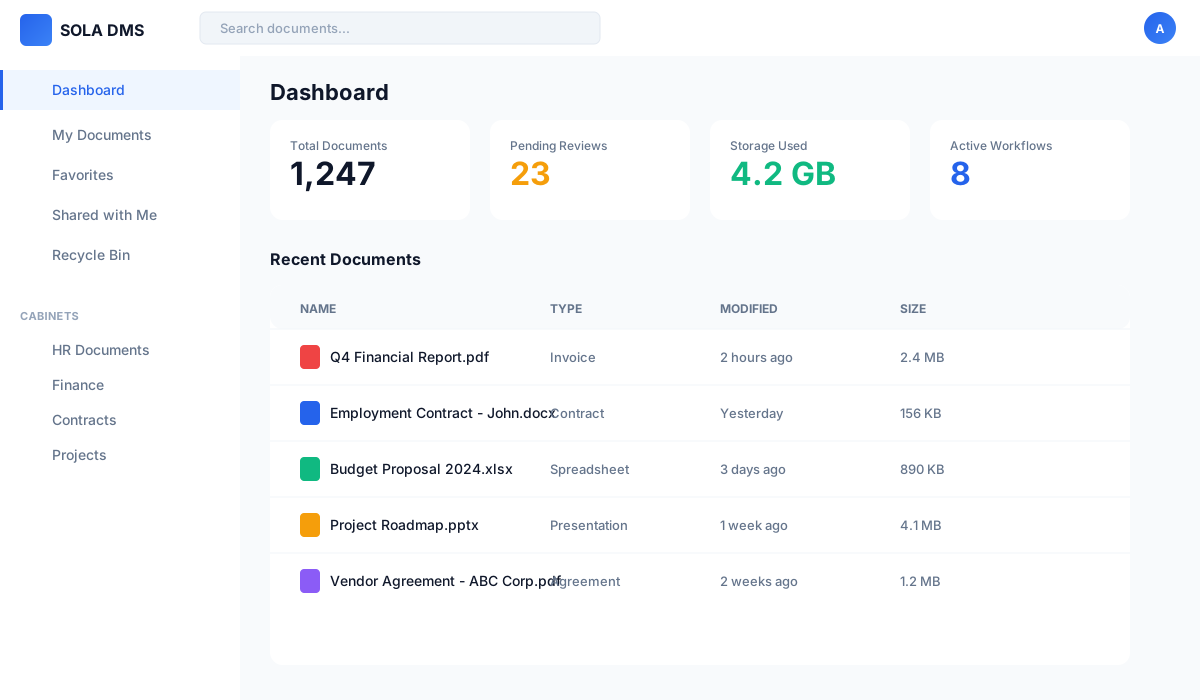
Access the application and log in with the default credentials.
-
Open the Application
Navigate to http://localhost:5047 in your browser.
-
Enter Credentials
Use the default admin credentials:
Username:
adminPassword:
admin -
Change Your Password
For security, change the default password immediately after first login via User Settings.
User Management
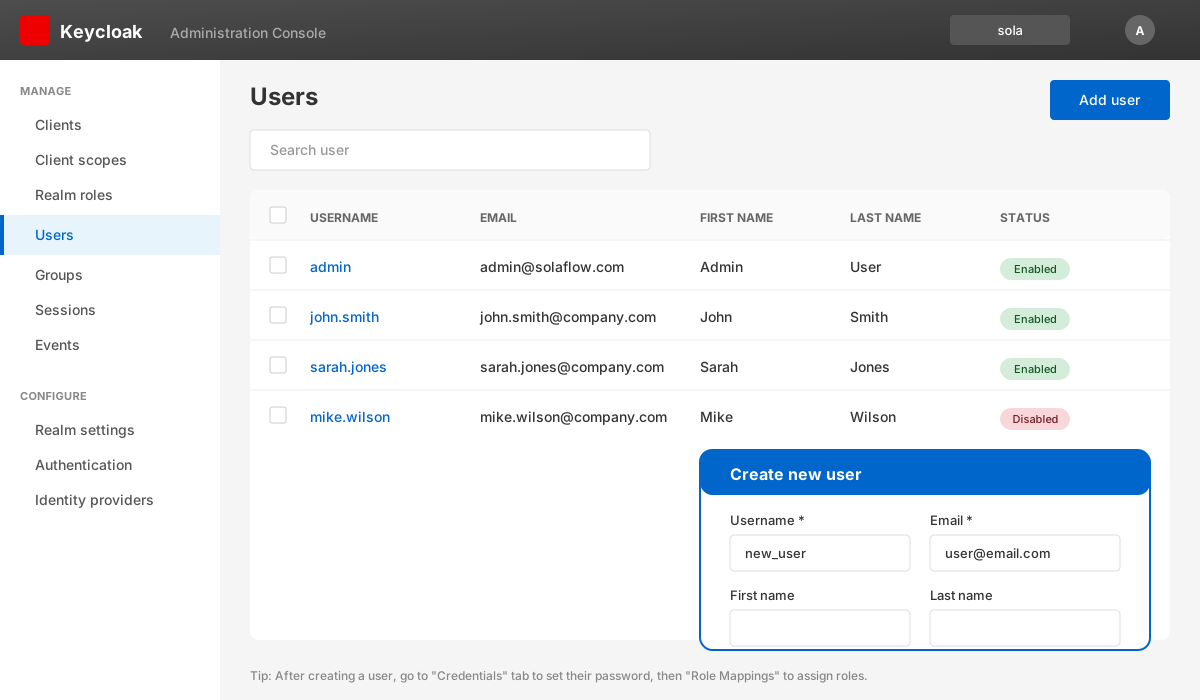
Manage users, roles, and permissions through the Admin panel or Keycloak.
Adding a New User
-
Access Keycloak Admin Console
Navigate to http://localhost:8080 and log in with admin credentials.
-
Select the SOLA Realm
From the realm dropdown in the top-left, select "sola" realm.
-
Navigate to Users
Click "Users" in the left sidebar, then click "Add user" button.
-
Fill User Details
Enter username, email, first name, and last name. Enable "Email Verified" toggle.
-
Set Password
Go to "Credentials" tab, click "Set Password", enter the password and disable "Temporary" if desired.
-
Assign Roles
Go to "Role Mappings" tab, assign appropriate roles (admin, user, viewer).
User Roles
| Role | Permissions |
|---|---|
| Admin | Full access to all features, user management, system configuration |
| User | Create, edit, delete documents; manage folders; run workflows |
| Viewer | View and download documents only, no editing capabilities |
Content Types
Content Types define the structure and metadata fields for different document categories.
Creating a Content Type
-
Open Admin Panel
Click on the gear icon or navigate to Admin > Content Types from the main menu.
-
Click "New Content Type"
Click the "New Content Type" button to open the creation form.
-
Enter Basic Information
Provide a name (e.g., "Invoice", "Contract", "Resume") and optional description.
-
Add Metadata Fields
Define custom fields for this content type:
- Text - Single line text input
- Number - Numeric values
- Date - Date picker
- Dropdown - Predefined options
- Checkbox - Boolean true/false
- Textarea - Multi-line text
-
Configure Field Options
For each field, set: Required/Optional, Default value, Validation rules, Display order.
-
Save Content Type
Click "Save" to create the content type. It will now be available when uploading documents.
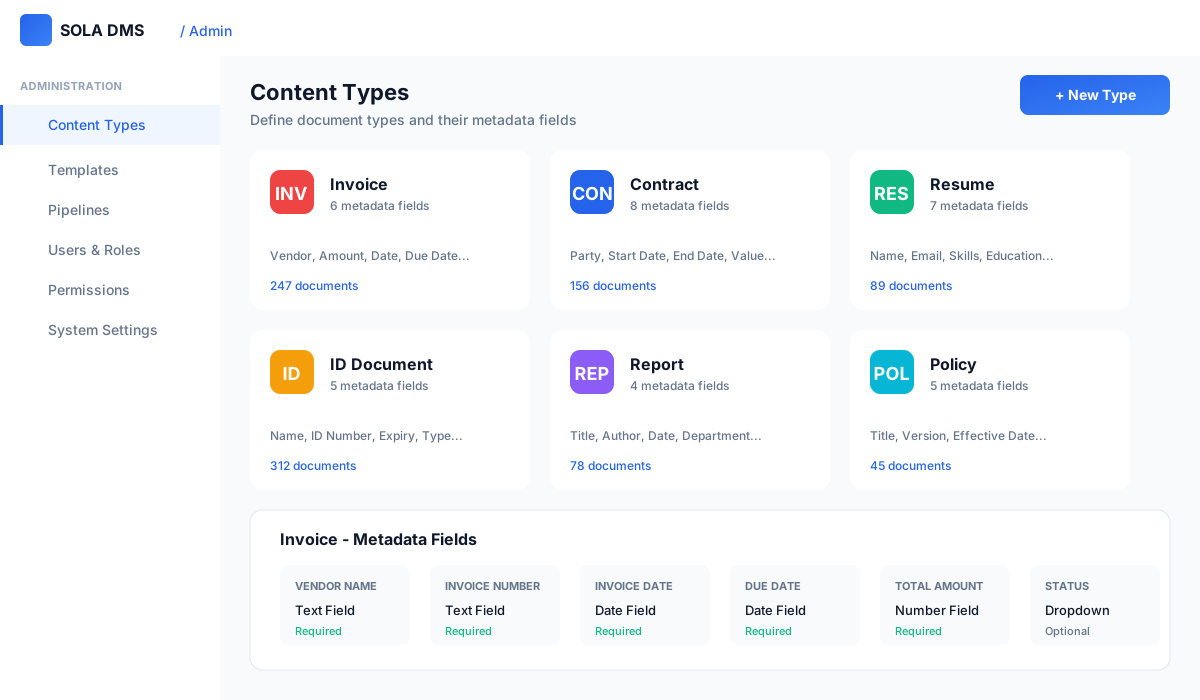
Example: Invoice Content Type
| Field Name | Type | Required |
|---|---|---|
| Vendor Name | Text | Yes |
| Invoice Number | Text | Yes |
| Invoice Date | Date | Yes |
| Due Date | Date | Yes |
| Total Amount | Number | Yes |
| Status | Dropdown | Yes |
Templates
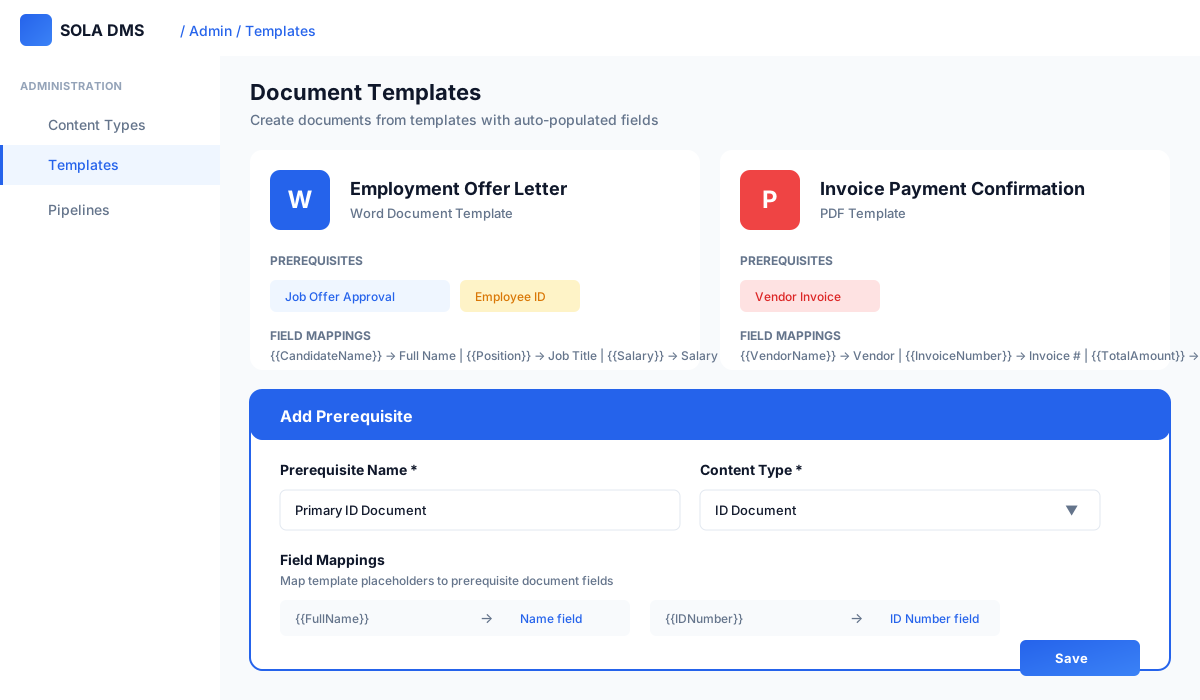
Templates allow you to create documents with pre-filled content and automatic field mapping from prerequisites.
Creating a Template
-
Navigate to Templates
Go to Admin > Content Types, select a content type, then click "Templates" tab.
-
Upload Template File
Upload a Word document (.docx) with placeholder fields using the format:
{{FieldName}} -
Add Prerequisites
Define which existing documents are required to create a new document from this template. Click "Add Prerequisite" and select a content type.
-
Name Your Prerequisites
Give each prerequisite a descriptive name (e.g., "Primary ID", "Secondary ID"). This allows multiple prerequisites of the same content type.
-
Map Fields
Link template placeholders to prerequisite document fields. This enables automatic data population.
-
Save Template
Click "Save" to activate the template. Users can now create documents from it.
{{CustomerName}}, {{InvoiceDate}}, {{TotalAmount}} for easy field mapping.
Using a Template
-
Click "Create from Template"
From the folder view, click the "Create" button and select "From Template".
-
Select Template
Choose the template you want to use from the list.
-
Select Prerequisites
For each required prerequisite, search and select an existing document.
-
Generate Document
Click "Generate" to create the new document with all fields auto-populated.
Pipelines (Workflows)
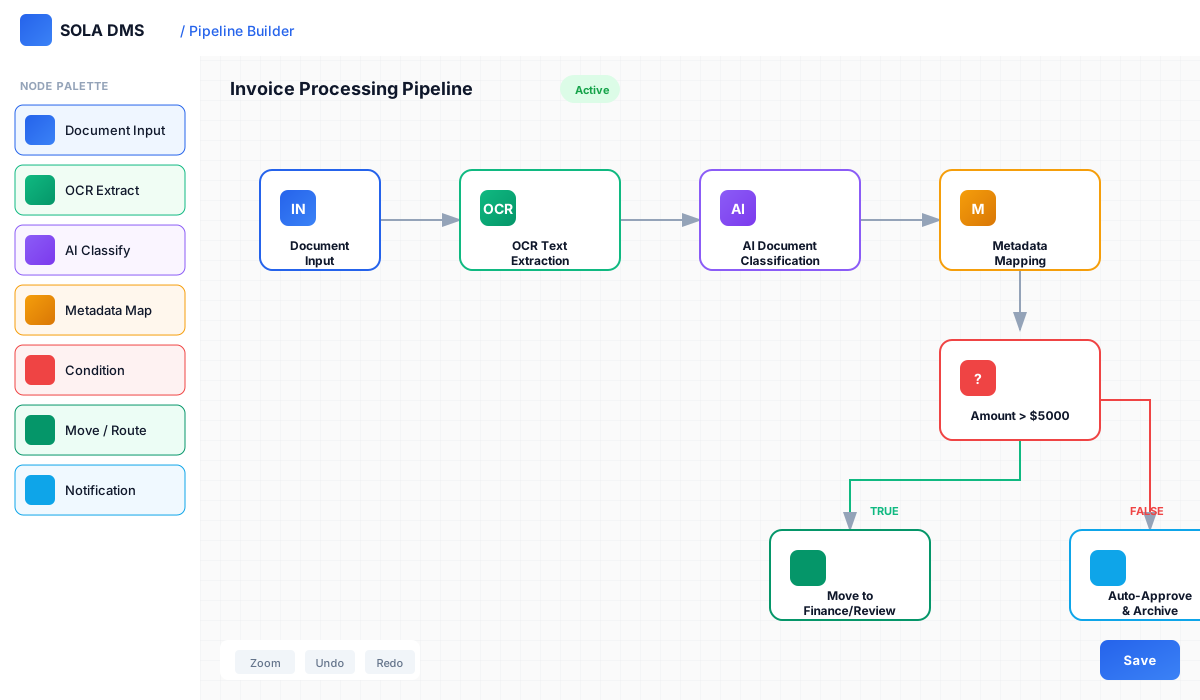
Pipelines automate document processing with AI-powered extraction, routing, and approval workflows.
Creating a Pipeline
-
Open Pipeline Builder
Navigate to Admin > Pipelines and click "Create Pipeline".
-
Name Your Pipeline
Enter a descriptive name (e.g., "Invoice Processing", "Contract Approval").
-
Add Nodes
Drag and drop nodes from the toolbox to build your workflow:
- Document Input - Entry point for documents
- AI Classification - Auto-detect document type
- OCR Extraction - Extract text and data
- Metadata Mapping - Map extracted data to fields
- Approval - Route for human review
- Condition - Branch based on rules
- Notification - Send alerts
- Move/Copy - Route to destination folder
-
Connect Nodes
Draw connections between nodes to define the flow. Documents will process through connected nodes sequentially.
-
Configure Each Node
Click on each node to configure its specific settings and parameters.
-
Assign Content Types
Link the pipeline to specific content types so it triggers automatically on document upload.
-
Activate Pipeline
Toggle the pipeline status to "Active" to enable automatic processing.
Permissions
Control access to cabinets, folders, and documents with granular permission settings.
Permission Levels
| Level | View | Download | Edit | Delete | Share | Manage |
|---|---|---|---|---|---|---|
| Viewer | ||||||
| Reader | ||||||
| Contributor | ||||||
| Editor | ||||||
| Manager |
Setting Folder Permissions
-
Right-click on Folder
Right-click on a folder and select "Permissions" from the context menu.
-
Add User or Group
Click "Add" and search for users or groups to grant access.
-
Select Permission Level
Choose the appropriate permission level from the dropdown.
-
Save Changes
Click "Save" to apply the permissions. Subfolder permissions can be inherited or overridden.
Folders & Cabinets
Organize documents using a hierarchical structure of cabinets and folders.
Cabinet vs Folder
Cabinet
Top-level container for organizing related folders. Has its own security scope and settings.
Folder
Container within a cabinet for grouping documents. Can have subfolders and inherit permissions.
Creating a Folder
-
Navigate to Location
Open the cabinet or folder where you want to create the new folder.
-
Click "New Folder"
Click the "New Folder" button in the toolbar or use the keyboard shortcut.
-
Enter Folder Name
Type a descriptive name for the folder.
-
Assign Content Types (Optional)
Restrict which content types can be stored in this folder.
-
Set Permissions (Optional)
Configure access permissions or inherit from parent folder.
Document Operations
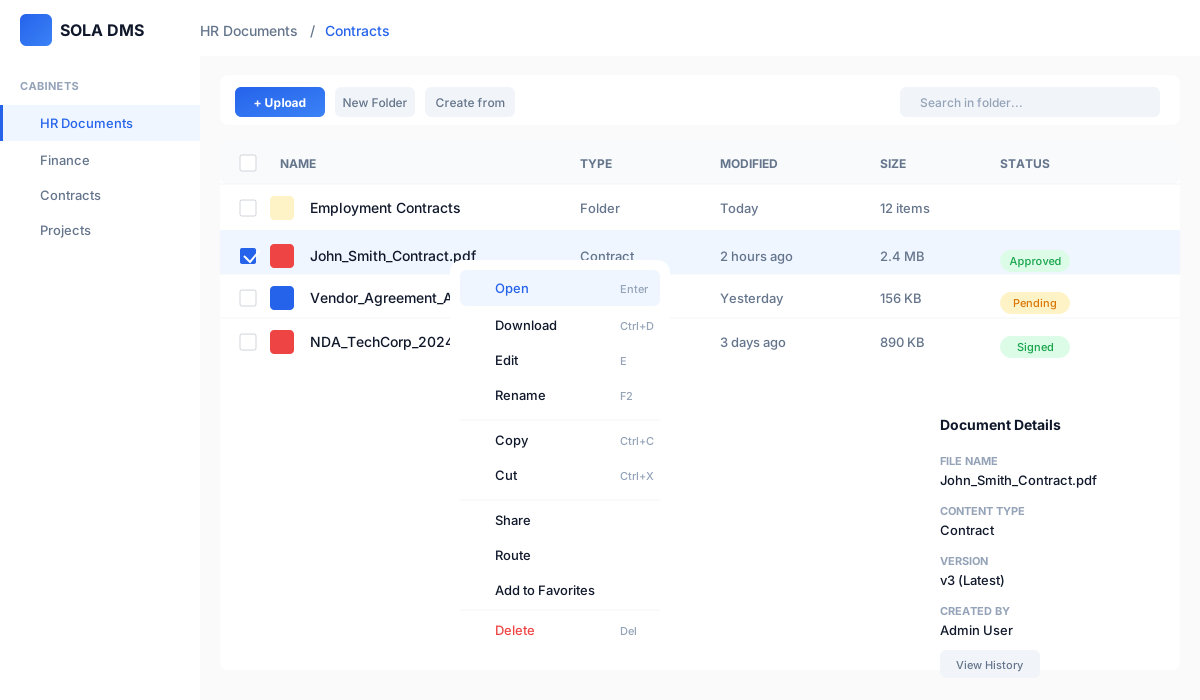
Complete reference for all document operations available in SOLA DMS.
Upload Operations
| Operation | Description | How To |
|---|---|---|
| Upload | Upload a single document with metadata | Click "Upload" button or drag & drop file |
| Multi-Upload | Upload multiple documents at once | Select multiple files or drag & drop folder |
| Create from Template | Generate document from a template | Click "Create" > "From Template" |
View & Edit Operations
| Operation | Description | Shortcut |
|---|---|---|
| View | Open document in viewer/preview | Enter or Double-click |
| Edit | Open document for editing (creates new version) | E |
| Rename | Change document name | F2 |
| Download | Download document to local computer | Ctrl+D |
Organize Operations
| Operation | Description | Shortcut |
|---|---|---|
| Copy | Copy document to another location | Ctrl+C |
| Cut | Move document to another location | Ctrl+X |
| Paste | Paste copied/cut document | Ctrl+V |
| Add to Favorites | Bookmark document for quick access | Ctrl+B |
Share & Collaborate
| Operation | Description | How To |
|---|---|---|
| Share | Create shareable link with expiry and permissions | Right-click > Share |
| Route | Send document through approval workflow | Right-click > Route |
| Send for Review | Request feedback from specific users | Right-click > Send for Review |
Delete & Recover
| Operation | Description | Shortcut |
|---|---|---|
| Delete | Move document to Recycle Bin | Delete |
| Restore | Recover document from Recycle Bin | Open Recycle Bin > Select > Restore |
| Permanent Delete | Permanently remove from system | Recycle Bin > Empty or Delete |
Version Control
Track document changes with automatic version history.
How Versioning Works
- Every edit creates a new version automatically
- All previous versions are preserved
- Compare versions side-by-side
- Restore any previous version as current
- Version comments for change tracking
Viewing Version History
-
Select Document
Click on the document to select it.
-
Open Version Panel
Right-click and select "Versions" or click the version icon in the details panel.
-
Browse Versions
View all versions with timestamps, authors, and comments.
-
Preview or Restore
Click "Preview" to view a version, or "Restore" to make it the current version.
Search & Filters
Find documents quickly using full-text search, metadata filters, and AI-powered semantic search.
Search Types
Full-Text Search
Search within document content, including PDFs and Office documents.
Metadata Search
Filter by custom fields, content type, date ranges, and more.
Semantic Search
AI-powered search that understands meaning, not just keywords.
Search Syntax
| Syntax | Example | Description |
|---|---|---|
keyword |
invoice |
Basic keyword search |
"phrase" |
"annual report" |
Exact phrase match |
field:value |
type:invoice |
Search specific field |
date:range |
date:2024-01-01..2024-12-31 |
Date range filter |
System Architecture
SOLA DMS is built on a modern, microservices architecture designed for scalability and reliability.
Component Overview
| Component | Port | Purpose |
|---|---|---|
| SOLA API | 5047 | Main application server, REST API, and web interface |
| DataPipeline | 5001 | Document processing, AI/ML services, OCR, classification |
| SQL Server | 1433 | Primary database for documents, metadata, and configuration |
| Keycloak | 8080 | Identity provider, SSO, user management |
| Meilisearch | 7700 | Full-text search engine with instant results |
| Qdrant | 6333 | Vector database for semantic/AI-powered search |
| Redis | 6379 | In-memory cache for performance optimization |
Data Flow
-
Document Upload
User uploads document through web interface. SOLA API receives and stores the file.
-
Processing Pipeline
DataPipeline extracts text (OCR), classifies document type, and extracts metadata using AI.
-
Indexing
Document content is indexed in Meilisearch for full-text search. Embeddings stored in Qdrant for semantic search.
-
Storage
Metadata saved to SQL Server. File stored in configured storage location. Cache updated in Redis.
API Reference
SOLA DMS provides a RESTful API for integration with external systems.
Authentication
All API requests require a Bearer token obtained from Keycloak.
curl -X POST "http://localhost:8080/realms/sola/protocol/openid-connect/token" \
  -H "Content-Type: application/x-www-form-urlencoded" \
  -d "grant_type=password" \
  -d "client_id=sola-document-frontend" \
  -d "username=admin" \
  -d "password=admin"
Common Endpoints
| Method | Endpoint | Description |
|---|---|---|
| GET | /api/documents |
List documents |
| POST | /api/documents |
Upload document |
| GET | /api/documents/{id} |
Get document details |
| PUT | /api/documents/{id} |
Update document |
| DELETE | /api/documents/{id} |
Delete document |
| GET | /api/folders |
List folders |
| GET | /api/search |
Search documents |
Troubleshooting
Common issues and their solutions.
Services Not Starting
Solution:
# Check container logs
docker compose logs -f

# Ensure enough memory
docker system info | grep Memory

# Restart with fresh state
docker compose down -v
docker compose up -d
Database Connection Issues
Solution: SQL Server takes 30-60 seconds to initialize on first startup. Wait and retry.
# Check SQL Server status
docker compose logs sola-mssql

# Verify SQL Server is accepting connections
docker exec sola-mssql /opt/mssql-tools18/bin/sqlcmd -S localhost -U sa -P 'YourStrong@Passw0rd' -C -Q "SELECT 1"
Port Conflicts
Solution: Edit the .env file to change port mappings.
# Check what's using the port
netstat -tulpn | grep 5047

# Edit .env and change ports
API_PORT=5048
KEYCLOAK_PORT=8081
Getting Help
- Check the logs:
docker compose logs -f - Visit our support portal: solaflow365.com
- Contact support: support@solaflow365.com